This guide explains the day-to-day EasyVend workflow for Bell's Ice distributors, from assigning delivery rounds to drivers through to completing deliveries in MiniVend Web and sending Central Billing information.
Workflow at a Glance
The usual Bell's Ice distributor workflow is:
-
Import the required Standard Orders for the delivery date in EasyVend.
-
Assign the required Rounds and MiniVend Web user from the MiniVend Delivery screen in EasyVend.
-
The driver loads the assigned customers in MiniVend Web.
-
The driver selects each customer and enters the actual products and quantities being delivered onsite.
-
The driver completes the delivery in MiniVend Web so a delivery docket and Docket Number are generated.
-
Once the run is complete, the delivery is released back to EasyVend.
-
Generate and send the Bell's Central Billing information.
Preparing Recurring Deliveries
Bell's Ice distributors commonly service customers on recurring weekly, fortnightly, monthly or other scheduled runs. These recurring customer stops are set up in EasyVend as Standard Orders.
The Standard Orders must be imported for the required delivery date before the deliveries can be assigned to the driver. For Bell's customers, the Standard Order may contain little or no product quantity so the customer stop is created for the run and the driver can enter the actual products and quantities onsite.
Step 1 - Import the Standard Orders
Before assigning the delivery run to the driver, import the Standard Orders for the required delivery date.
- In EasyVend, go to Orders > Import Standard Orders.
- Enter the required delivery date in Date From and Date To.
- If required, enter the Customer Round to import orders for a specific Round.
- Review any other filters as required.
- Click Import.
- Review the import results to confirm the Standard Orders have been created for the selected delivery date.
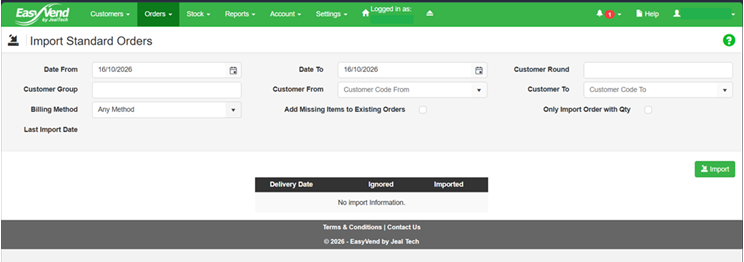
Import Standard Orders - select the required delivery date and Round, then click Import to create the recurring orders for the delivery run.
Ad Hoc Orders
Bell's distributors may also receive ad hoc orders from customers who require an additional delivery outside their normal recurring schedule.
Enter the ad hoc order in EasyVend for the required delivery date and assign it to the appropriate Round before preparing the driver's delivery run.
Step 2 - Assigning Deliveries to the Driver
Before the driver can load the delivery run in MiniVend Web, the required Rounds must be assigned to the correct MiniVend Web user in EasyVend.
Assign the Rounds in EasyVend
- In EasyVend, go to Settings > MiniVend Delivery.
- Select the required Delivery Date.
- Locate the vehicle or delivery location being used for the run.
- Under Rounds, select the Round or Rounds the driver will be servicing.
- Under User, select the MiniVend Web user who will complete the deliveries.
- Review the Load All Customers setting as required.
- Click Save Changes.
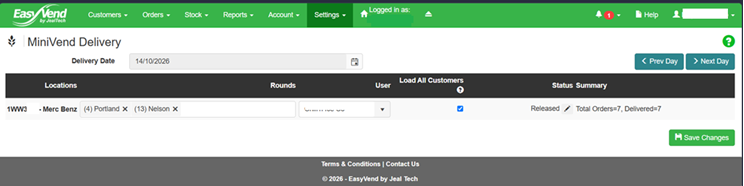
MiniVend Delivery - select the Delivery Date, assign the required Rounds and MiniVend Web user, then click Save Changes.
Load All Customers
The Load All Customers option controls whether the MiniVend Web user can access all customers or only the customers included in their assigned deliveries. Where the driver should only see customers for the assigned delivery run, make sure Load All Customers is not selected.
Step 3 - Loading the Delivery Run in MiniVend Web
Once the Rounds have been assigned in EasyVend, the driver can open MiniVend Web and load the delivery run. Imported recurring orders (Standard Orders) will be listed in the Delivery tab.
- Open MiniVend Web and log in using the assigned driver account.
- Select the Delivery tab.
- Check that the expected recurring orders for the run are listed.
- Open the required delivery when arriving onsite.
If a Customer Is Missing
If the driver cannot see an expected customer, check the MiniVend Delivery setup in EasyVend before continuing.
- The correct Delivery Date has been selected.
- The Standard Order has been imported for the correct delivery date.
- The customer/order is assigned to the correct Round.
- The required Round has been assigned on the MiniVend Delivery screen.
- The correct MiniVend Web user has been selected.
- Save Changes was selected after updating the assignment.
Entering the Order Onsite
For recurring Bell's Ice deliveries, open the imported Standard Order from the Delivery tab and enter the actual products and quantities required when visiting the customer.
- In MiniVend Web, select the Delivery tab.
- Open the required customer delivery.
- Add the products being delivered, where required.
- Enter the actual delivered quantities.
- Review the order before completing the delivery.
Note: The quantities entered in MiniVend Web should reflect what is actually being delivered to the customer on the day.
Completing the Delivery
After the products and quantities have been entered, complete the delivery in MiniVend Web.
- Review the customer and order details.
- Confirm the delivered products and quantities are correct.
- Use Sign & Deliver where a customer signature is required, or select Deliver to complete the delivery.
- Confirm the order moves to the completed deliveries list.
Bell's Delivery Dockets
A delivery docket and Docket Number are required for the Bell's Central Billing process.
For this reason, drivers should complete each Bell's delivery in MiniVend Web rather than leaving the customer visit open or incomplete.
Important: If a delivery does not have a Docket Number, review whether the order was completed correctly in MiniVend Web before generating Bell's Central Billing.
Releasing the Delivery Run
Once all deliveries for the run have been completed, return to the MiniVend Web Home screen and release the delivery run.
- Confirm all required customer deliveries have been completed.
- Check that the delivered quantities and any required delivery details have been entered.
- Return to the MiniVend Web Home screen.
- Select Release Delivery.
Important: Only release the delivery after the driver has finished the run and all required deliveries have been completed.
Sending Bell's Central Billing
After the Bell's deliveries have been completed and released, the Central Billing information can be generated in EasyVend.
- In EasyVend, go to Customers > Central Billing.
- Click Create New.
- Select the Bell's Central Billing configuration.
- Enter the required Delivery From and Delivery To dates.
- Click Generate.
- Review the generated information and check for any missing details.
- Correct any missing information before continuing.
- Click Save & Send.
- Confirm the send when prompted.
Customer and Product Setup Required for Central Billing
For Bell's Central Billing to process correctly, check that the required customer and product information has been set up in EasyVend.
- Bell's Central Billing customers have the correct Supplier and Supplier Account Number.
- Bell's products have the correct Supplier and Supplier Product Code.
- The applicable customer Rounds are included in the Central Billing configuration.
- The delivery has been completed and has a Docket Number.
Troubleshooting
A Customer Is Not Showing in MiniVend Web
-
Check the delivery date in MiniVend Delivery.
-
Check the customer is assigned to the correct Round.
-
Check the Round has been assigned to the correct MiniVend Web user.
-
Click Save Changes after making any updates.
-
Ask the driver to reload MiniVend Web and check the Delivery tab again.
A Bell's Order Is Missing from Central Billing
-
Check the customer is set up for the correct Central Billing supplier.
-
Check the customer Supplier Account Number.
-
Check the Supplier Product Code for the products delivered.
-
Check the delivery has been completed.
-
Check a Docket Number has been generated for the delivery.
After correcting the missing information, return to Central Billing and generate the information again.
The Delivery Has No Docket Number
If a completed Bell's delivery does not have a Docket Number, first check whether the driver completed the order using Deliver or Sign & Deliver in MiniVend Web. If required, review the order in EasyVend, generate the delivery docket, then generate the Central Billing information again.
Bell's Docket PDF File Names
The PDF file name can differ depending on where the docket is generated.
-
A docket generated from MiniVend Web may include the Docket Number in the PDF file name.
-
A docket emailed from the EasyVend Orders screen may be named Docket.PDF.
The PDF file name alone does not confirm whether the delivery is ready for Central Billing. Check the EasyVend order and Docket Number where required.