In EasyVend, documents such as dockets and invoices are created as PDF files that can be opened in a PDF viewer for previewing and printing. Reports are displayed in a Print Preview window.
The Print Preview Window
The Print Preview window allows you to scroll through the report, send it as an attachment to an email, download it in various formats, and print it.
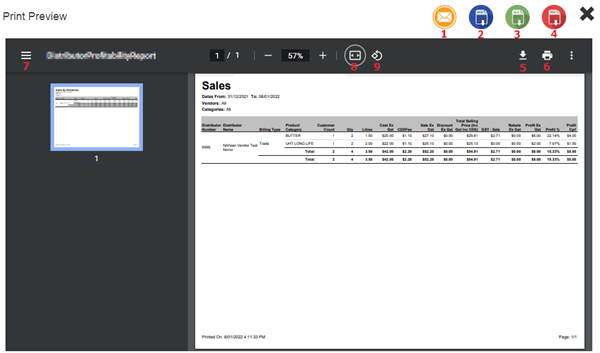
The title bar of the window contains buttons for emailing and downloading the report:
- Email: Click here to send an email with the report automatically attached
- Download as a DOC file
- Download as an XLS file for opening the report in your spreadsheet software
- Download as a PDF
- Download as a PDF
- Print
- Show/hide the thumbnail menu
- Fit to page/fit to width
- Rotate the report
Note: In addition to the Preview button, some reports may have an Export CSV button. This allows you to download the data as an unformatted CSV file that can be manipulated in your spreadsheet software.
Handling PDF Documents
For reports and forms that download as PDF files, you can set them to open in your browser or in a PDF reader such as Adobe Acrobat Reader. For ease of use, you will need your preferred PDF reader set as the default program for opening PDF files.
Setting the Default PDF Reader
Windows
- In file explorer, right-click any PDF file
- Select Open With
- If it is not already set to your preferred reader:
- Click on Choose another app
- Select the PDF application you want to use, such as your browser
- Check the Always use this app to open .pdf files option
- Click OK
Mac OS X
- Select any PDF file. Control-click to open the menu, and choose File > Get Info
- From the Open with: drop-down menu, select your preferred application, such as Adobe Reader or Preview
- Click the Change All button, and in the subsequent dialog box, click Continue
Opening downloaded PDFs
Browsers differ, but we will use Chrome as our example:
- When a PDF is being downloaded, an animated Downloads Tray icon is displayed in the top right corner of the browser
- Downloads can also be accessed from the 'more' (3 dots) menu in the top right
- When the download completes, Chrome opens the Downloads Tray automatically to display the list of recently downloaded files
- The automatic opening of the tray can be controlled by selecting Downloads in Chrome's Settings and turning Show downloads when they’re done on or off
- Click on the file name or the Open icon to open the downloaded file
- You can also open the folder where the file was downloaded by clicking the folder icon
- Once open, you can preview the document and/or click the Print icon to print it
Changing download location
Again, we will use Chrome as our example for how to change how your browser handles downloaded PDFs.
Settings in Chrome allows you to change where downloaded files are saved, and whether you are asked each time for a file location.
- Open Chrome's settings page by selecting 'Settings' from the 'more' menu (the three vertical dots in the top right corner), or by pasting chrome://settings/ in the address bar and hitting enter.
- Scroll down and select Downloads
- You can:
- Change the location where downloads are saved
- Select whether you are asked for a location before each file is saved
- Select whether the Downloads Tray in the top right corner opens automatically when a download in completed
Printing and Emailing PDFs
- To print:
- Locate the PDF, either by going to the downloads folder in your file manager, or opening the downloads history in your browser.
- In Chrome, selecting 'Downloads' from the 'more' menu displays a list of your downloaded files in chronological order
- Open the file you wish to print
- Click the printer icon, or select 'Print' from the file menu
- Locate the PDF, either by going to the downloads folder in your file manager, or opening the downloads history in your browser.
- To email:
- When composing your email, click on the option to attach a file
- Locate the PDF in the downloads folder
- Select the file to attach it to your email