By integrating EasyVend with MYOB, you get a business system that handles your all your accounting. Once you have set up EasyVend and created your MYOB Company File, you can link the two together. When you synchronize with MYOB, customers, invoices and receipts created in EasyVend will be added to your transactions in MYOB.
To enable MYOB integration, please contact the JealTech team on 02 9188 4470. Once enabled, connecting your EasyVend company to your MYOB Organization can be done in three easy steps:
- Authenticating your MYOB Organization with EasyVend
- Mapping the accounts that EasyVend will use when sending data to your MYOB Organization
- Starting the synchronization process
You then synchronize EasyVend with MYOB on a regular basis to keep MYOB up-to-date.
Once an invoice or receipt has been synchronized with MYOB:
- The transaction's status is updated to show it has been 'posted' to MYOB
- The transaction cannot be edited or deleted without first removing it from MYOB by 'unposting' it
- The transaction details screen will have an additional button:
- Un-post MYOB: Click to 'unpost' the transaction so it can be edited or deleted in EasyVend
- Unposting removes the transaction from MYOB
- After editing and saving, you can perform another sync to re-post the updated transaction to MYOB
- Un-post MYOB: Click to 'unpost' the transaction so it can be edited or deleted in EasyVend
Note: For specific accounting questions directly related to MYOB, please contact MYOB Support.
1. Set up the Connection between EasyVend and MYOB
To enable MYOB integration, please contact the JealTech team on 02 9188 4470. Once enabled:
- Select MYOB from the EasyVend Settings menu
- Click the Connect to MYOB button
- If you weren’t already logged into MYOB, a MYOB login page will appear; login and continue
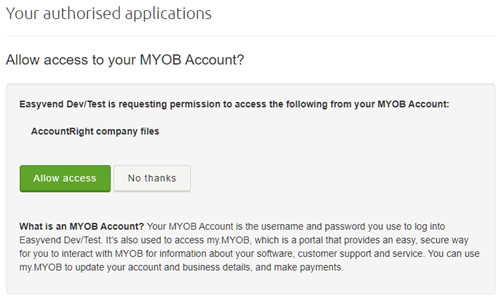
- When prompted by MYOB that EasyVend wants access, click Allow access
- You will be prompted to select the organization to which you want to link EasyVend
- Company File: If your MYOB account has multiple organizations, you will be prompted to select the organization to which you want to link
EasyVend - Company File Username and Password: These are not required for MYOB Business. For MYOB AccountRight, these should match the username and password you enter when you access your company file in MYOB. By default, the username is Administrator and the password is blank.
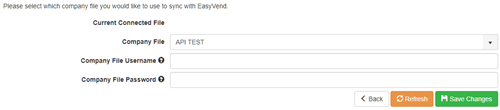
- Company File: If your MYOB account has multiple organizations, you will be prompted to select the organization to which you want to link
- Click Save Changes
- Note: Once you have performed your first synchronization, you should not disconnect from MYOB or connect to a different MYOB organization without first consulting your accountant and JealTech.
2. Mapping your MYOB Chart of Accounts to EasyVend
For EasyVend to synchronize transactions with your MYOB Organization, it needs to know which Accounts in your MYOB Chart of Accounts to use when posting EasyVend transactions. This is configured via the MYOB Mapping page in EasyVend, outlined below.
Before You Start
Each bank account you use for EasyVend receipts must exist in both MYOB and EasyVend. For each bank account in EasyVend, you will be asked to choose the corresponding bank account in MYOB.
To add a bank account in EasyVend:
- Select General Settings from the Settings menu
- Select Bank Account Settings on the left
- Click Create New
- Enter the account name and number
- Click the
 save icon
Conversion Date
The Conversion Date is the date from which EasyVend transactions will be synced to MYOB. Invoices and receipts dated prior to the conversion date will not be synced.
The conversion date would usually match the Opening Balance Date in your MYOB Business Settings. However, if you have already been manually entering EasyVend data into MYOB, you will need to discuss the conversion date with your accountant and JealTech.
Sync Invoice Item As
You can choose whether your invoices are synced to MYOB with invoice line items based on each order or on each product. To change this setting, please contact JealTech support on 02 9188 4470. Support can explain the differences, update the setting, and check any settings in MYOB that may be needed.
- If Order is selected, Orders in the Invoice will be synced as MYOB Invoice Items. (This is default behavior.)
- If Product is selected, Product totals for the Invoice will be synced as MYOB Invoice Items.
- When syncing a product for the first time, EasyVend attempts to match products based on the Product Name
Sync Invoice Number As
- Invoice Number: uses the EasyVend Invoice Number as the MYOB Invoice Number. The Customer PO from the first order on the invoice is also sent to MYOB and appears in the Customer PO field.
- Customer PO: sends the EasyVend Invoice Number to the MYOB Customer PO field (prefixed with “EV”) and allows MYOB to generate its own Invoice Number automatically.
This setting helps you match or separate invoice numbering between EasyVend and MYOB depending on your accounting workflow.
Mapping your Accounts
- Select MYOB from the EasyVend Settings menu
- If you haven't already done so, set up the connection with MYOB as described in Step 1
- Click the MYOB Mapping link
- The Mapping screen consists of drop-down sections. Each section expands down to reveal a list of options for which you must select the corresponding account or tax type from your MYOB Chart of Accounts:
- Bank Accounts:
- For each bank account you have set up in EasyVend, select the corresponding bank account in MYOB
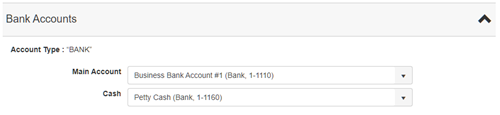
- For each bank account you have set up in EasyVend, select the corresponding bank account in MYOB
- Other Accounts:
- For each account, you can:
- Select an existing account from the MYOB Chart of Accounts, or
- Click Create Default to have EasyVend generate a new account of the correct type in MYOB; this new account can easily be identified as holding data from EasyVend
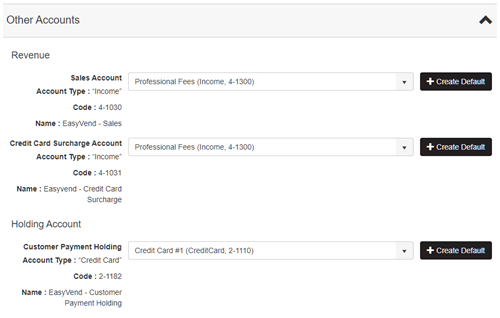
- NOTE: DO NOT CHOOSE AN ACTUAL CREDIT CARD ACCOUNT for the Holding Account.
- Due to restrictions in MYOB, the Holding account must be Account Type 'Credit Card', which is a current liability account type that can have payments posted to it.
- If you do not already have a suitable account, we strongly recommend you use Create Default to automatically create one.
- For each account, you can:
- Tax Types:
- Select the correct tax type for your sales. For Australia, these are:
- Sales Tax Type: Goods & Services Tax (GST 10%)
- Sales GST Free Tax Type: GST Free(FRE 0%)
- Non-Reportable Transactions: Not Reportable (N-T 0%)
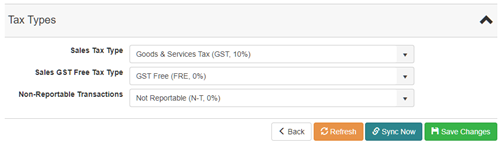
- Select the correct tax type for your sales. For Australia, these are:
- Bank Accounts:
- Click Save Changes to finish your MYOB Account Mapping
Mapping Details
| Section | Account | Account Type | Description |
| Bank Accounts | Bank | 'Bank' Account | One account for each bank account into which customer receipts are paid |
| Other Accounts | Revenue - Sales Account |
'Income' Create Default generates: 4-1030 EasyVend - Sales (Income) |
Account to which income from EasyVend invoices is posted |
| Revenue - Credit Card Surcharge Account |
'Income' Create Default generates: 4-1031 Easyvend – Credit Card Surcharge (Income) |
Account to which credit card surcharges are posted if the payment gateway is used | |
| Holding | 'Credit Card' - SEE NOTE Create Default generates: 2-1182 EasyVend – Customer Deposits/Payments (Credit Card) |
Account for temporarily holding receipts from customers until they are allocated to an invoice NOTE: DO NOT CHOOSE AN ACTUAL CREDIT CARD ACCOUNT. Due to restrictions in MYOB, the Holding account must be Account Type 'Credit Card', which is a current liability account type. If you do not already have a suitable account, use 'Create Default' to automatically create one. |
|
| Tax Types | Sales | GST on Income | Used for sales subject to GST |
| Sales GST Free | GST Free Income | Used for sales not subject to GST but included in your BAS | |
| Non-Reportable | BAS Excluded | Tax type used for things that don't get included in your Business Activity Statement (e.g. drawings from the business, wages and superannuation) |
3. Synchronizing with MYOB
- Select MYOB from the EasyVend Settings menu
- Click the Sync Now link
- Select a Date to Sync to
- Transactions dated prior to and including this date are synced to MYOB
- Click the Sync Now button
- A summary will appear listing the results of the sync, including counts of the number of each transaction type, and errors, if any.
- If there are any errors, they will be listed below the results lists, with a link the to the transaction causing the error
The Synchronization Process
| Transaction | Synchronization Result | Notes |
| Invoice created in EasyVend | Invoice created in MYOB - 1 line item for taxed products - 1 line item for untaxed products - 1 line item for Fee to be added to each invoice if applicable - 1 line item for rounding if applicable |
Dr: Accounts Receivable Cr: Income [EasyVend - Sales] Cr: GST if applicable |
| - 1 line item for taxed portion of Credit Card Surcharge if applicable - 1 line for GST-free portion of Credit Card Surcharge if applicable |
Cr: Income [EasyVend - Credit Card Surcharge] Cr: GST if applicable (apportioned according to GST liability of products on the invoice, as the surcharge is considered to form part of the price for the goods - 15.1. Is the surcharge part of the consideration for the supply made by the merchant?) |
|
| Negative invoice created in EasyVend | Negative invoice created in MYOB | Cr: Accounts Receivable Dr: Income [EasyVend - Sales] Dr: GST if applicable |
| Write off invoice in EasyVend | Negative invoice created in MYOB and contra'd against written off invoice | |
| Unpost invoice in EasyVend | Invoice removed from MYOB (at the time of unposting - unposting a transaction in EasyVend sychronizes that transaction with MYOB immediately) | Postings removed (at the time of unposting) If the invoice is not cancelled in EasyVend, it will be re-posted when you next sync |
| Add unallocated receipt in EasyVend | Receive Money transaction created in MYOB | Dr: Bank Account Cr: Holding Account [EasyVend – Customer Deposits/Payments] |
| Allocate receipt in EasyVend | Invoice Payment transaction created in MYOB | Dr: Holding Account [EasyVend – Customer Deposits/Payments] Cr: Accounts Receivable |
| Unpost receipt in EasyVend | Delete Receive Money in MYOB Delete Invoice Payment in MYOB if receipt was allocated |
Postings removed (at the time of unposting) If the receipt is not deleted in EasyVend, it will be re-posted when you next sync |
| Create $0 receipt to offset a credit note (negative invoice) against an invoice in EasyVend | Create 2 offsetting Invoice Payment transactions in MYOB allocated to the credit note and invoice. No Receive Money transaction is created because the receipt is for $0. | Dr: Holding Account [EasyVend – Customer Deposits/Payments] Cr: Accounts Receivable Cr: Holding Account [EasyVend – Customer Deposits/Payments] Dr: Accounts Receivable |
| New/updated customer | New/updated contact in MYOB | Contacts are matched on the exact customer name |
Synchronization Errors
If there errors when syncing with MYOB, the details of the error will be displayed on screen:
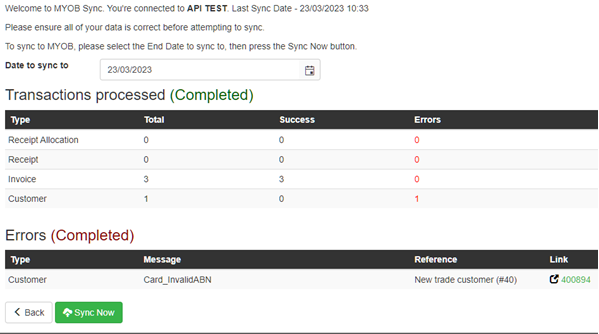
In the Errors section, you can view the item causing the error by clicking on the link in the item's Link column.
MYOB, bank reconciliations and the payment gateway
If you have set up the payment gateway, the payment gateway will usually credit your bank account with the money received, minus the payment gateway's fee.
- In EasyVend, receipts are for the full amount paid by the customer
- To account for the merchant fee when doing a bank reconciliation in MYOB, you will need to:
- Identify the individual receipts from customers via the payment gateway, and
- Add a Spend Money expense transaction in MYOB to account for the fee deducted
Please see The Payment Gateway, Online Website and Customer Order Portal for more details on bank reconciliations and identifying payment gateway receipts.